Video Guides
Master new skills with our quick and easy video guides.
The Paintology Video Guides page provides a centralized collection of video tutorials designed to help users master the core features and workflow of the Paintology app. The guides are categorized by the specific sections or features of the app they cover.
The content includes video guides for:
Video guides on getting the best out of Paintology
How to use the Gallery
The Gallery Section is the platform's public exhibition space, serving two vital roles: it is your comprehensive digital portfolio for showcasing finished work, and it is the primary window for discovering, appreciating, and engaging with the art of the entire Paintology community.
How to use Tutorials
The Tutorials Section is your personalized education center, designed to provide structured learning, technical guidance, and artistic inspiration at every stage of your drawing journey. It is meticulously organized to ensure you can quickly find the exact lesson you need, apply the knowledge immediately, and track your progress toward mastery.
Community Video Guide
The Community Section is the vibrant social heart of Paintology, designed to connect you with fellow artists, foster collaboration, and provide the encouragement you need to thrive. It’s the central place where creators gather, share inspiration, and build lasting relationships, transforming a solo endeavor into a shared journey.
Draw Video Guide
The Draw Section represents the complete workflow for bringing your artistic visions to life on Paintology. It is the centralized system that launches your digital canvas, provides access to powerful tools, and seamlessly integrates your creative process with the community for sharing and feedback. It is the direct translation of your inspiration into digital art.
Homescreen Video Guide
The Homescreen serves as the central command center and personalized launchpad for your entire Paintology experience. It is designed to offer a balance of inspiration, crucial updates, and easy access to all the tools and community functions you need, ensuring your creative journey is both focused and engaging from the moment you log in.
My Resources Video Guide
The My Resources section is your personalized, dynamic library for learning, inspiration, and tool management. Designed to complement the active creation space of the My Painting section, this area consolidates all the information, references, and personalized assets you need to advance your skills and manage your workflow efficiently. It transforms scattered information into a curated educational and functional hub.
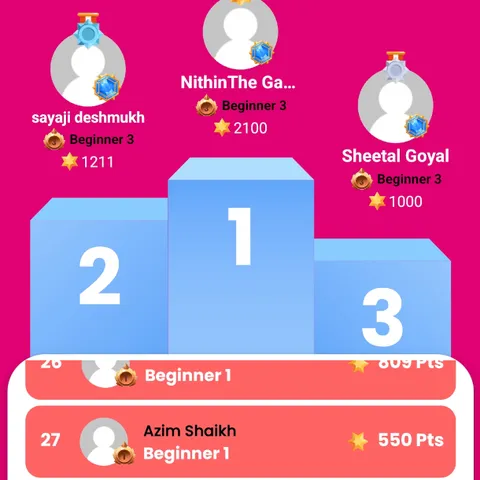
Leaderboard Video Guide
The Leaderboard is the dedicated hub for celebrating achievement, dedication, and excellence within the Paintology community. This section transcends simple ranking; it is a public testament to the hard work and consistency of our most engaged artists, providing essential motivation and visibility. It transforms personal practice into community-wide recognition.
My Painting - Video Guide
The My Painting section is the heart of the Paintology experience—it is your personal digital studio and the actual canvas where inspiration becomes art. This section isn't just a basic drawing window; it is a feature-rich, optimized environment designed for intuitive control, professional results, and seamless integration with the rest of the community platform.
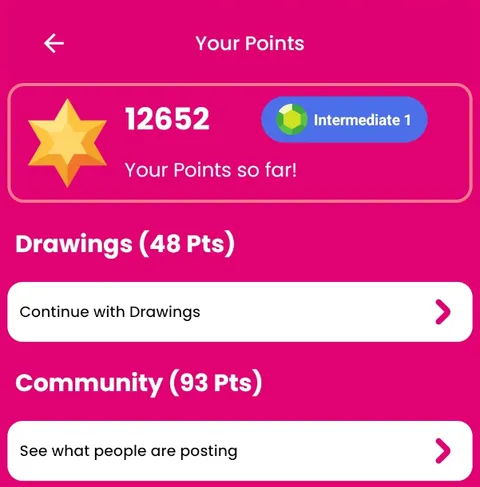
My Points - video guides
The My Points section is the system that tracks, records, and celebrates your active contribution and skill development within the Paintology community. More than a simple score, this is a transparent record of the value you create on the platform, reinforcing a virtuous cycle of effort, recognition, and reward. It directly measures your investment in your artistic journey and provides tangible benefits for every milestone achieved.
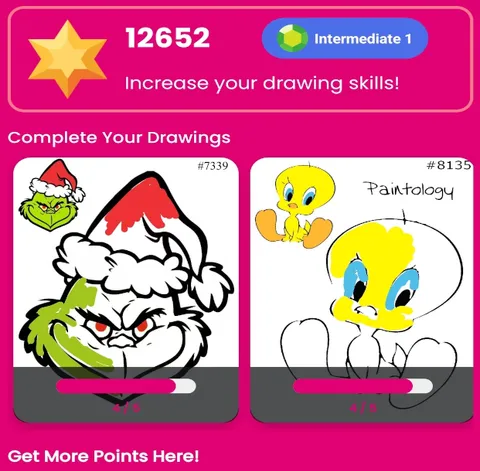
Drawing Activity - Video Guide
The Drawing Activity Center is where practice meets inspiration, offering structured and engaging ways to boost your skills and interact with the Paintology community. This section ensures that every user, regardless of skill level, always has a compelling reason to open the app and create. It moves beyond passive consumption of art to active creation, providing the motivation and direction needed for consistent artistic growth.
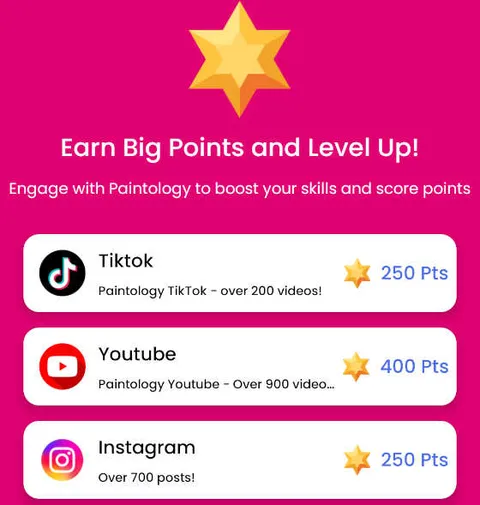
Big Points Section
The Paintology platform recognizes that mastery is a journey, not a destination. Therefore, we provide this Big Points section as a readily available repository of essential resources to accelerate your artistic growth. This section ensures you have direct access to the most vital knowledge and tool recommendations needed to overcome creative hurdles and establish a consistent practice. It acts as a permanent reference, guiding you from basic setup through advanced study.
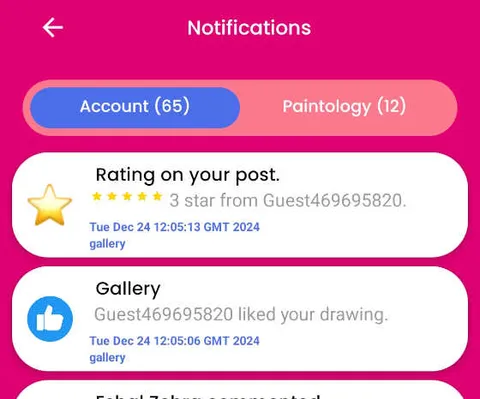
Notifications Section
The Notification Center is the dynamic communication hub for the entire Paintology community. It's the central place where your creative journey intersects with the activity of others, keeping you connected, informed, and engaged. More than just a simple alert system, this is where you can track your progress, celebrate achievements, stay updated on community events, and monitor the engagement with your artwork. It ensures you never miss a beat—from a new follower joining your creative circle to an important update from the Paintology team.
- Gallery
- Described as the public exhibition space within Paintology.
- Serves as a portfolio for users’ finished work, but also as a way to discover other people’s art in the community.
- Tutorials
- The “Tutorials” section is framed as a personalized education center.
- It offers structured learning, technical guidance, and inspiration. The page suggests users can easily find the “exact lesson you need” and track progress.
- Community
- Paintology’s “Community” section is described as the “vibrant social heart” of the platform.
- This is where artists connect, collaborate, share inspiration, and build relationships.
- Draw
- The “Draw” guide covers the core workflow of creating art in Paintology.
- Specifically, it talks about launching the digital canvas, accessing tools, and integrating your creative process with community sharing.
- Homescreen
- This video guide explains the “Homescreen” of the app, which is the user’s main control center.
- It’s positioned as a “launchpad” that balances inspiration, updates, and easy access to tools and community features.
- My Resources
- Described as a personal, dynamic library inside the app.
- This section consolidates reference images, tutorials, tool settings, and any assets you’re using — a functional hub for organizing your workflow.
- Leaderboard
- The “Leaderboard” video guide explains how the app tracks and celebrates progress.
- It’s not just a ranking — it’s “a public testament” to users’ hard work and consistency.
- My Painting
- This is the user’s personal drawing space — the digital studio where their work comes to life.
- The guide highlights that this area is more than just a blank canvas; it's tightly integrated with the community and learning tools.
- My Points
- “My Points” is the system where user activity, progress, and contributions are tracked.
- The video guide describes it as a transparent record of the value you bring to the community.
- Drawing Activity Center
- This section is where structured practice lives — the place in the app that encourages regular drawing.
- The guide suggests it helps you stay engaged, motivated, and consistent with your art journey.
- Big Points Section
- The “Big Points” guide is more resource-focused.
- It offers essential knowledge, tool recommendations, and references to help with creative challenges and growth.
- Notifications
- This guide covers how notifications work within the app.
- It’s the communications hub — updating you about community events, engagement, and personal progress.